Today we’re going to see how to run GameNative on our Android device to play PC games; thanks to this app, it’s easy to do.
The GameNative system is an open-source Android app that lets you run PC games; to do so, you download the game and adjust the necessary settings to make it work. Many of these games are configured based on a compatibility list maintained by the community. This is a simplified version of Winlator, an app that offers more control by default but is less intuitive for just playing games. As an even simpler alternative, there’s GameHub on Android. If we’re looking for better performance, we can try Steam on ARM Linux.
With this app, you can launch games from Steam, GoG, and the Epic Store, with support for cloud saves—a must-have feature for continuing your gameplay on another device.

GameNative, tutorial and setup
The GameNative app is a fork of Pluvia with more options and capabilities. Thanks to its simple user interface and task automation, you can enjoy many PC games on your smartphone, tablet, or TV box.
GameNative Limitations and Considerations
- GameNative is currently in development and may be unstable.
- The cloud save system may cause some issues.
- Many games are not compatible; this depends on various factors.
- Hardware-intensive PC games will run at low frame rates even on high-end Android hardware.
- The system and games may take up a lot of storage space.
Downloading and installing GameNative
It’s very easy to download and install GameNative; just follow these steps. Just like any other app, you’ll need to install it from an APK file.
- Install directly with Google Play or Download the APK from its official website.
- Manually install the APK using a file explorer.
- Accept write permissions and other functions.
Add Steam, Epic, GoG, or Amazon
Once the app is installed, it will ask you to enter your Steam credentials on first launch. In that same menu below, you can select other stores if you want to add them.
- After entering your details, you’ll see your game library.
- There are several tabs to filter content by store.

Basic management and settings for GameNative
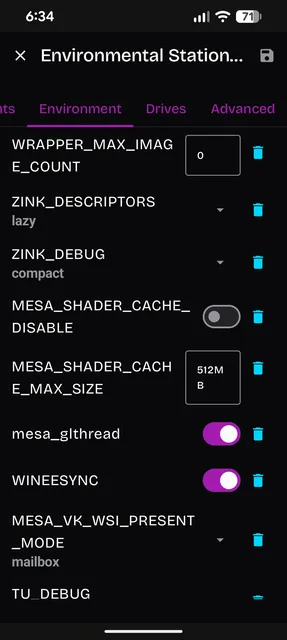
Within the main list in the three-line menu, you’ll find the app’s general settings, where you can define how the system behaves. Within each game, you’ll then find specific settings for that game; the key configuration option is “Edit Container,” where you control how it’s emulated.
- Within the game, you’ll find “Install” to download it.
- Then we have Play to launch it.
- Whatever is needed to emulate it will download automatically.
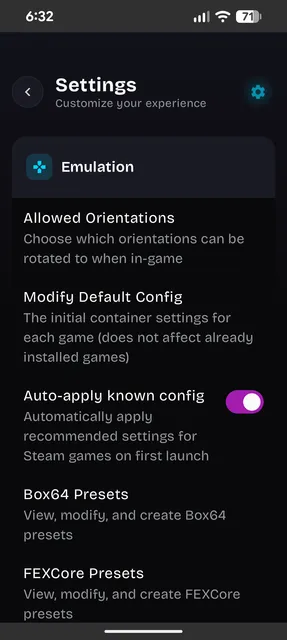
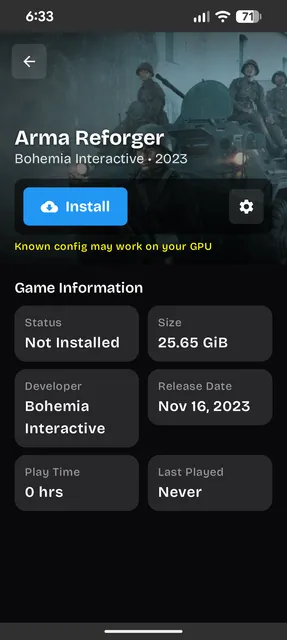
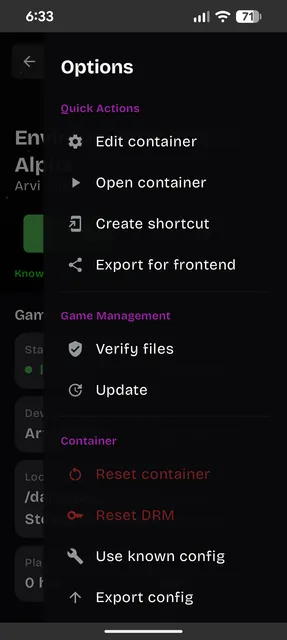
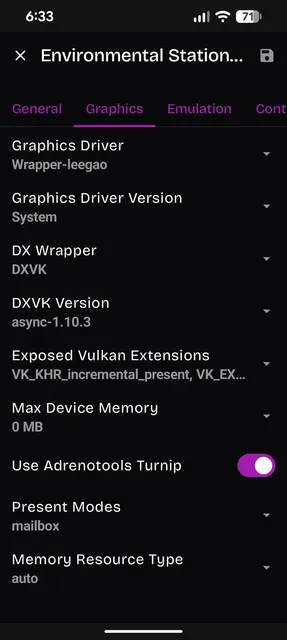
The container settings are where you’ll find everything you need to fine-tune the emulation. If the game works, you can skip this entire section and simply enjoy it without any hassle. Among the most notable settings are the general options, the graphics section where you select the graphics driver, and the controller settings.

On-screen controls, gamepads, and mouse
Within the games, there are various settings we can adjust; it’s recommended to connect a Bluetooth gamepad to enhance the gaming experience.
- By default, virtual controls are displayed if you don’t have a Bluetooth gamepad connected.
- At the top, you have the option to enable mouse mode.

In-game settings and performance data
- Pressing Back on Android takes you to the settings menu.
- There, you can view the performance HUD, which displays FPS, RAM, battery level, and power consumption.
- In the Controls section, you can enable keyboard controls and manage on-screen controls.
